

Frequently Asked Questions
- Why aren't the printer settings configured automatically?
- Some of the pages appear upside down after folding. How can I fix that?
- Some of the pages appear out of order after assembling the signatures. How can I fix that?
- I can't find the duplex (two-sided) printer setting. Where is it?
- My printer doesn't support duplex (two-sided) printing. Can I still use Bookbinder's Collator?
Why aren't the printer settings configured automatically?
Bookbinder's Collator makes suggestions to the printer for the settings to use, but ultimately, the settings are configured by your printer's driver software. Bookbinder's Collator is not in control of your printer settings. The printer driver is in control of them. Unfortunately, this means you must manually check the printer settings yourself to ensure that they are correct before printing.
Some of the pages appear upside down after folding. How can I fix that?
If you are printing a folio or octavo, check the printer settings to ensure that the double-sided edge setting is set to use the "short edge." In older macOS versions, there is a separate setting for this that lets you choose between the long edge and the short edge. In modern macOS versions, such as macOS Sequoia, this setting is combined with the double-sided setting, so you would choose "On (Short Edge)."
If you are printing a quarto, check the printer settings to ensure that the double-sided edge setting is set to use the "long edge." In older macOS versions, there is a separate setting for this that lets you choose between the long edge and the short edge. In modern macOS versions, such as macOS Sequoia, this setting is combined with the double-sided setting, so you would choose "On". The long edge is implied, as the other option is "On (Short Edge)" and that is not what we want for quarto.
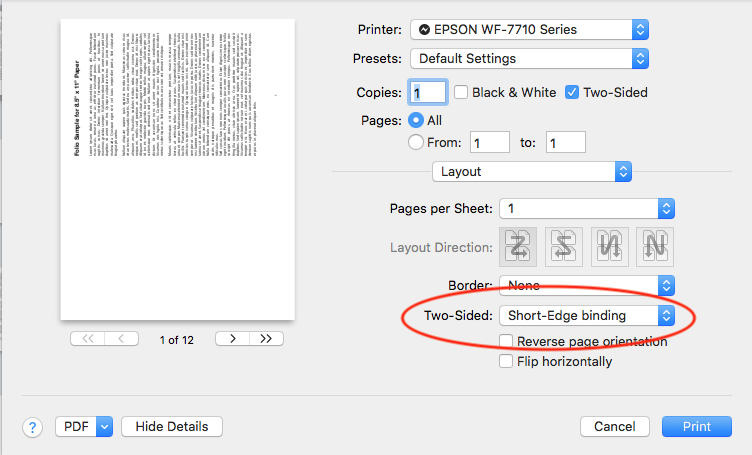
macOS Monterey print settings dialog highlighting the edge setting.
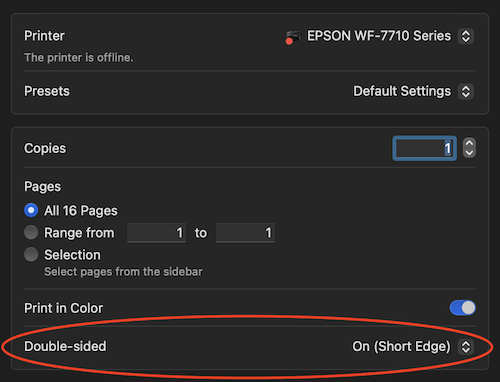
macOS Sequoia print settings dialog highlighting the edge setting.
Some of the pages appear out of order after assembling the signatures. How can I fix that?
If you are using Bookbinder's Collator 1.3 or earlier, and printing a quarto or octavo, there was a bug that might cause this to happen if the source PDF did not have the exact number of pages needed. You can fix this by either updating to Bookbinder's Collator 1.4 or later, or by adding extra blank pages to the source PDF so that the exact number of necessary pages are present. The exact number of required pages can be calculated by multiplying the number of pages per one side of a sheet of paper (Folio: 2, Quarto: 4, Octavo: 8), by the number of sides (2), by the number of sheets in a signature. For example, a folio with four sheets per signature, would require a source PDF with a page count that is a multiple of 16 (2 * 2 * 4). An octavo with eight sheets per signature would require a source PDF with a page count that is a multiple of 128 (8 * 2 * 8).
I can't find the duplex (two-sided) printer setting. Where is it?
The "Two-Sided" checkbox for duplex printing appears near the option for printing in black and white or color, but it only appears if your printer supports duplex printing. If it is missing, see the next section for instructions on manually printing both sides of the paper.
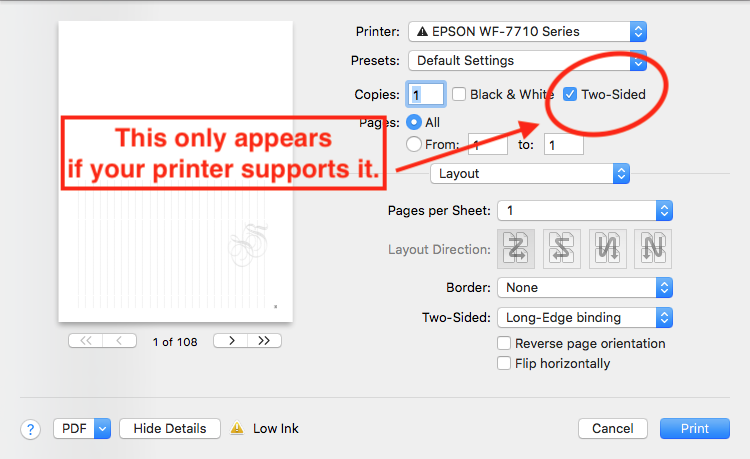
Print settings dialog highlighting the two-sided setting, which is only visible if your printer supports it.
My printer doesn't support duplex (two-sided) printing. Can I still use Bookbinder's Collator?
Yes, you can still use Bookbinder's Collator, but you will have to do a bit more work.
While most modern printers support duplex (two-sided) printing, some do not. If you have one of those printers that do not support duplex printing, you will have to print only the odd numbered pages first, then manually flip the stack of paper over (in the correct orientation), and feed those printed pages back into your printer, before printing the even numbered pages.
I suggest trying a small test with just a few pages first, to minimize wasted ink and paper. It will probably take several attempts to figure out the best procedure for your particular printer.
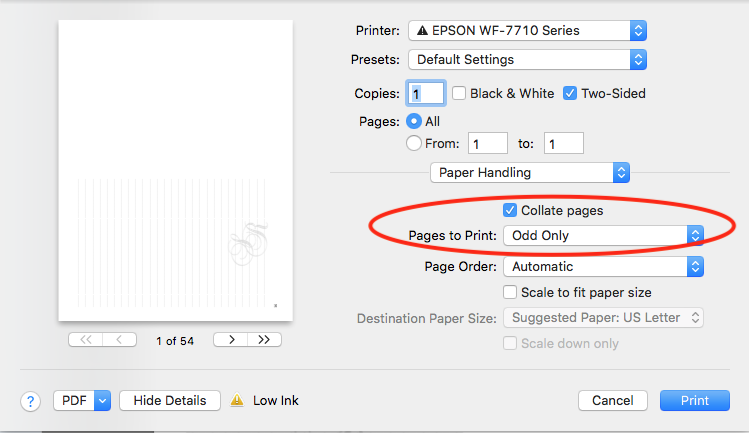
Print settings dialog highlighting the setting that allows you to choose to print only the odd or even pages.